991cw Login
Enter your registered mobile number and password to access your 991cw account. Deposits start from ৳200 via bKash or Nagad.
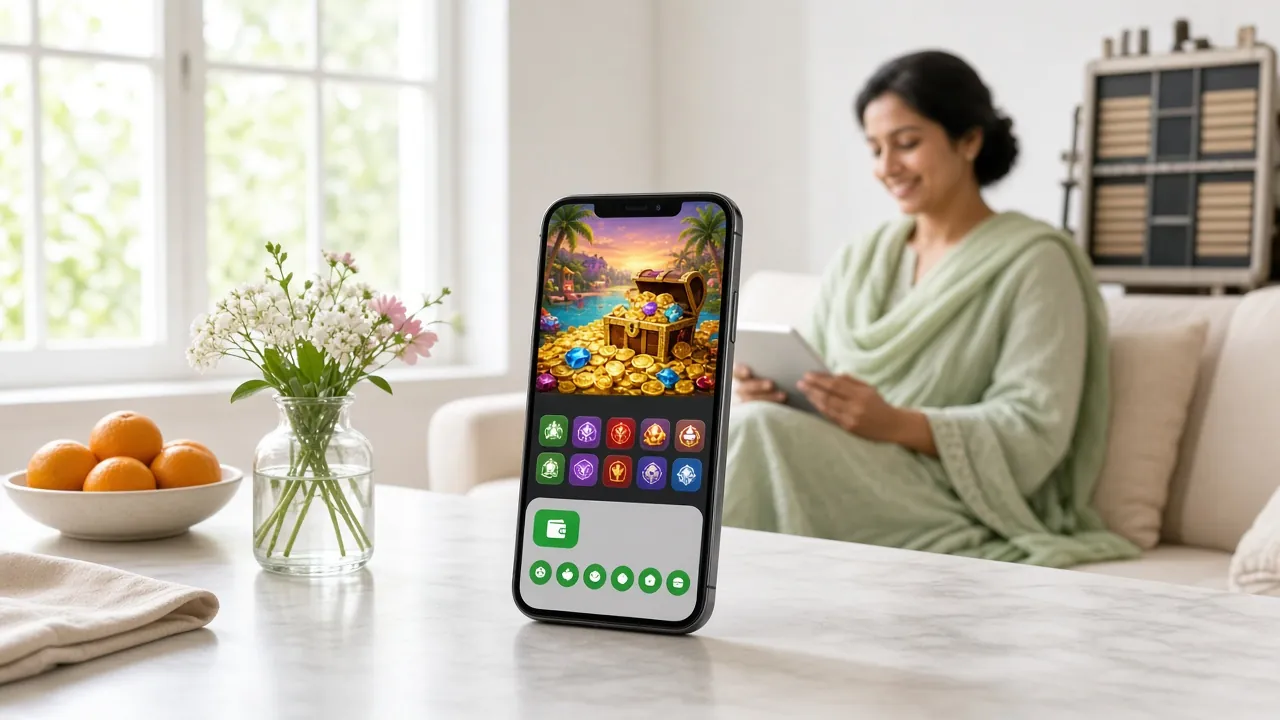
Prefer the app? 991cw App v3.4.6 lets you log in with one tap. Android 8.0+, only 28 MB.
Get the AppWays to Log In to 991cw
Three entry points, one account. Choose what suits your device and habit.
| Login Method | What You Need | Best For | Speed | Status |
|---|---|---|---|---|
|
Mobile Number
|
Registered BD mobile number + password | All players; most direct route from any browser on Android or iOS | Under 10 seconds on a stable 4G connection | Recommended |
|
Username
|
Username set at registration + password | Players who prefer not to type a phone number on shared devices | Same as mobile number login once you remember the username | Available |
|
991cw App
|
App v3.4.6 installed on Android 8.0+ (28 MB, free) | Daily players who want one-tap access, push notifications and faster page loads | Fastest — credentials saved, no browser tabs needed | Fastest |
All three methods connect to the same account balance and bonus wallet. If you have never registered, create a free account first — it takes under two minutes.
Step-by-Step Login Process
From browser to your account dashboard in four moves.
-
01Open the 991cw Login Page
On your phone or desktop browser, go to 991cw.co/991cw-login/ or tap the Log In button in the navigation bar at the top of any page. The page loads in a few seconds even on a slow mobile connection. Bookmark it so you don't have to search next time.
-
02Enter Your Mobile Number
Type the BD mobile number you used when you registered — for example 01XXXXXXXXX. The field accepts 11-digit numbers starting with 013, 014, 015, 016, 017, 018 or 019. If you registered with a username instead, switch to the username field before submitting.
-
03Type Your Password
Enter your account password. Use the eye icon on the right of the field to show or hide characters if you are not sure of the spelling. Passwords are case-sensitive. If you have saved the password in your phone's password manager, it will fill in automatically — tap the prompt.
-
04Tap Log In and Start Playing
Hit the green Log In button. A successful login takes you straight to your account dashboard. From there you can check your balance, claim a bonus, make a bKash deposit from ৳200, or jump into 991cw Casino games. If an error appears, see the troubleshoot table below.
Keep Your 991cw Account Safe
Five habits that protect your balance and personal data.
-
Use a strong, unique password
Pick a password of at least 10 characters mixing letters, numbers and a symbol. Do not reuse the same password from your bKash, Nagad or email account. If one service is compromised, a unique password stops attackers from reaching your 991cw funds.
-
Enable two-step verification
When available, turn on SMS-based two-step verification in your account security settings. Even if someone learns your password, they cannot log in without the one-time code sent to your registered mobile number.
-
Avoid public Wi-Fi for login
Open Wi-Fi at cafés and bus terminals can be monitored. Use your mobile data connection (Grameenphone, Robi, Banglalink) when logging in or making a deposit. If you must use shared Wi-Fi, switch on a trusted VPN before opening the login page.
-
Log out on shared devices
If you log in from a friend's phone or a computer at a café, always tap Log Out before you leave. The "Remember me" checkbox is for your personal device only — never tick it on shared hardware.
-
Spot and ignore phishing links
The only real 991cw address is 991cw.co. Fake sites often swap letters (e.g. "991cw.net" or "99Icw.co"). Never enter your password after clicking a link in an unsolicited SMS or Facebook message — type the URL directly in your browser or use the app.
- Password is 10+ characters
- SMS verification turned on
- Using mobile data to log in
- Logged out on shared phones
- URL shows 991cw.co
Problems with your account? Contact 24/7 Live Chat from inside the app or website.
Fix Common Login Problems
Something went wrong? Find your situation in the table and follow the fix.
| Problem | Most Likely Cause | What to Do |
|---|---|---|
| "Wrong password" error on first attempt | Caps Lock is on, or you are entering a password from a different site by mistake from your password manager | Turn off Caps Lock, then type the password manually. If you still get an error after two tries, use the password reset flow to set a new one. |
| Account temporarily locked after multiple failed attempts | Too many wrong passwords trigger an automatic short lockout to block brute-force access | Wait 15 minutes, then try again with the correct password. If you have forgotten it, go through the password recovery steps below before the lockout expires. |
| SMS verification code does not arrive | Network congestion on your carrier, or your phone's spam filter is blocking short-code messages | Wait 60 seconds, then tap "Resend code." Check your phone's spam/blocked messages folder. If still missing, switch to a 4G connection and request the code again. |
| Page won't load or shows a blank screen | Browser cache conflict, or an outdated cached version of the page | Clear browser cache and cookies (Settings › Privacy), then reload. Try a different browser such as Chrome or Firefox. Alternatively, use the 991cw App which does not rely on browser cache. |
| "Mobile number not found" error | You may have registered with a different number, or the number was entered with extra spaces or the country prefix (+880) | Enter only the 11-digit local number starting with 01, without +880. Double-check which number you used at registration. If you cannot recall, contact 24/7 Live Chat with your registered email or username. |
| Logged in but balance shows ৳0 | You may have landed on the wrong account, or a pending deposit has not yet settled | Check the account name shown in the top corner to confirm it is yours. Deposits via bKash typically arrive within 4 minutes. If your deposit is older than 10 minutes and still missing, share the bKash transaction ID with Live Chat. |
Recover a Forgotten Password
Three steps to regain access without contacting support.
On the login form, tap the Forgot password? link. You will be taken to the password reset page. Enter the mobile number registered to your account — make sure it is the same number that is active on your SIM right now, because the reset code will be sent there.
991cw sends a one-time code by SMS within about 60 seconds. Type that code into the verification field on the reset page. The code expires after 5 minutes, so act quickly. If the SMS does not arrive, tap "Resend" once and check your carrier's signal strength.
Type your new password twice to confirm it. Choose something you have never used before — at least 10 characters, with a mix of letters and numbers. After saving, you are redirected to the login page. Enter your mobile number and your new password to log in straight away.
Frequently Asked Questions
The questions players ask most before and after logging in.
01 I registered but my mobile number is not accepted at login — why?
The most common reason is a formatting mismatch. Enter your number as 11 digits starting with 01, for example 01712345678, without the country code (+880) and without spaces or dashes. If you are sure the number is correct but still get an error, the account may have been registered with a username instead. Try the username field, or contact 24/7 Live Chat with the name and email you used during registration.
02 Can I stay logged in permanently on my phone?
Tick Remember me on the login form before you tap Log In. The session will persist on that specific browser or device for an extended period. For even more convenience, the 991cw App stores your credentials securely in your phone's protected storage and keeps you logged in automatically between sessions. Never use "Remember me" on a shared or public device.
03 My account was suspended — can I still log in?
A suspended account will show a specific message on the login screen rather than a generic password error. Suspensions usually happen because a document check (KYC) is pending, there is unusual activity, or you requested a voluntary self-exclusion. Contact 24/7 Live Chat directly — agents can tell you the exact reason and the steps to reinstate access. KYC documents (NID, Passport or Driving Licence) are reviewed within 2 hours.
04 Is the 991cw login page safe to use on mobile data?
Yes. The 991cw website and app use HTTPS encryption for all data transmitted between your device and the server, including your password and payment details. Your mobile data connection (Grameenphone, Robi, Banglalink, Teletalk) adds another layer of privacy compared to open Wi-Fi. Always confirm the browser address bar shows 991cw.co and the padlock icon before entering your password.
05 Can I log in to 991cw and deposit via Nagad on the same session?
Yes. After logging in, go to the Deposit section and select Nagad from the payment method list. The minimum deposit is ৳200. Funds arrive in your 991cw wallet within about 4 minutes. The same session also gives you access to bKash, Rocket, Upay and Bank Transfer deposits without logging out and back in again. See the 991cw Deposit Guide for exact steps.
06 What do I do if I no longer have access to my registered mobile number?
This requires manual account verification. Contact 24/7 Live Chat and explain that your registered number is inactive. You will need to provide identity documents — an NID card, Passport, or Driving Licence — to prove ownership of the account. Once the support team confirms your identity (usually within 2 hours), they can update the number on the account so you can reset your password and log in again.
Our support team is available around the clock. If your login issue is not covered above, start a live chat directly from any 991cw page.